Free Pinterest Pin Template (1000 × 1500) and How to Build One in Figma, Penpot or Canva
Making pins is easy. Making pins fast, week after week, without each one looking slightly different, is where most small studios give up. The fix is boring and it works: one template file at the right size, with a handful of layouts you reuse.
This page gives you that template for free, the specs Pinterest itself recommends, and the setup steps for Figma, Penpot and Canva if you’d rather build your own.
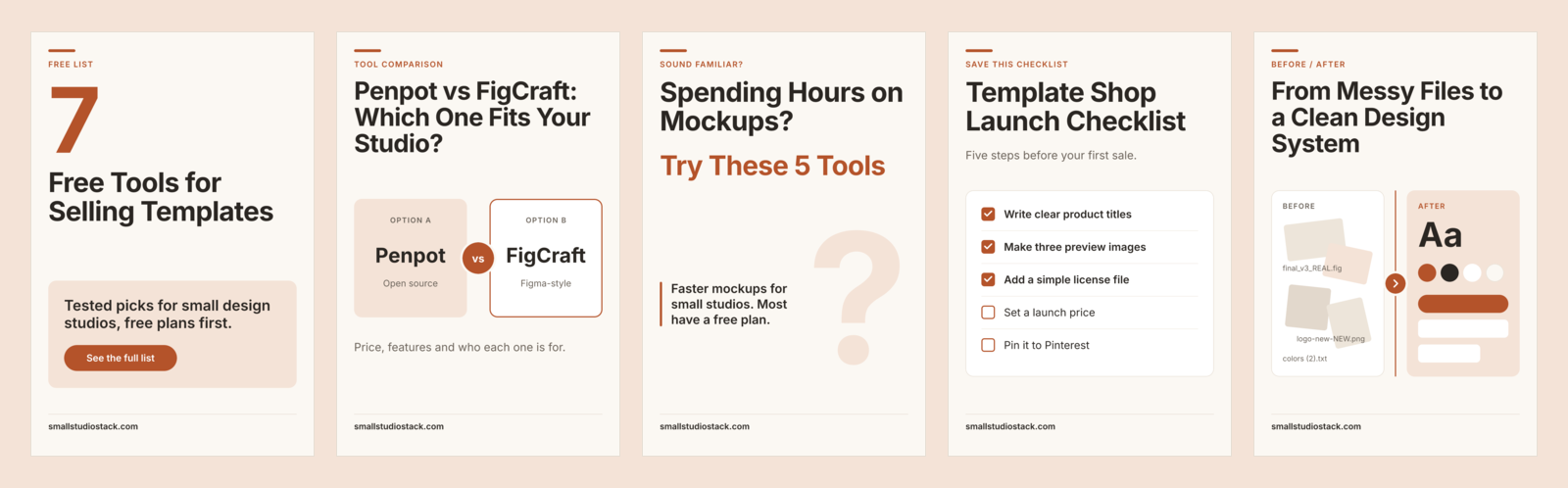
Download the free pin template (ZIP, 35 KB)
The download includes all five layouts as a FigCraft file and as five SVG files with the words kept as live text. The font is Inter, which is free but not included, so install it first. We checked the SVGs in a browser and in FigCraft. You can also import them into Figma, Penpot or Canva, but we haven’t tested that yet, so check that the text is still editable. If it isn’t, the README has every size, color and font setting to rebuild the layouts in a few minutes. The template is free for personal and commercial pins. Please don’t resell or redistribute the template files themselves.
The specs that matter
These come from Pinterest’s own help and creative guidelines.
| What | Pinterest’s recommendation |
|---|---|
| Aspect ratio | 2:3 |
| Size | 1000 × 1500 pixels |
| File type | PNG or JPEG |
| Max file size | 20 MB from desktop, 32 MB in the app |
| Pin title | Up to 100 characters |
| Pin description | Up to 800 characters |
One warning from the same guidelines: pins taller than 2:3 “might get cut off in people’s feeds.” If you want more room, add it to your article, not to the pin.
What’s in the template
Five layouts, each built on a 1000 × 1500 frame with the same margins, fonts and color styles, so swapping text is all you do.
- Number — “7 Free Tools for Selling Templates.” A big number, a short promise. Best for list posts.
- Comparison — “Penpot vs FigCraft: Which One Fits Your Studio?” Two names, side by side, ending with a question.
- Problem first — “Spending Hours on Mockups? Try These 5 Tools.” Lead with the frustration, then the fix.
- Checklist — “Template Shop Launch Checklist.” A short visible list. People save these to come back to.
- Before / after — “From Messy Files to a Clean Design System.” Two states with a clear divider.
Each layout keeps the headline in the top half, where it’s visible in a busy feed, and leaves room near the bottom for your site name.
How to set it up yourself
In Figma
- Press F (Frame), then type
1000and1500into the width and height fields in the right panel. - Add a layout grid or simply guides at 60 px from each edge. Keep text inside them.
- Create text styles for the headline, subhead and site name, and color styles for your background and accent. Changing a style updates every pin at once.
- Duplicate the frame for each of the five layouts. Name them clearly (“01 Number”, “02 Comparison” …).
- Export the frame as PNG or JPG at 1x. At 1000 × 1500 that’s already the size Pinterest recommends.
In Penpot
- Create a board (Penpot’s name for a frame) and set its size to 1000 × 1500 in the design panel.
- Add guides or a grid at 60 px margins.
- Save your headline font and colors as shared typographies and colors in the file’s assets so every board uses the same ones.
- Duplicate the board for each layout.
- Export the board as PNG or JPEG from the export section of the design panel.
If you’re coming from Figma, Penpot’s interface is laid out differently and can feel confusing for the first few sessions. Once you’re used to it, it’s just as good for this kind of work.
In Canva
- Choose Create a design → Custom size and enter 1000 × 1500 px.
- Pick your fonts and colors once and keep them in the same design, so each new pin starts from the same page.
- Add a page for each of the five layouts.
- Download as PNG or JPG.
Canva is the fastest of the three for one-off pins and needs no design background. Figma and Penpot give you more control when you’re building a set of pins that must stay consistent.
Which tool should you use for pins?
- You already design in Figma: keep your pins there, next to your other work. Styles keep a large set of pins consistent.
- You want free and open source: Penpot does everything this template needs, in the browser, at no cost for small teams.
- You want the quickest route and don’t design for a living: Canva gets a decent pin out in minutes.
Try the free plan first
Every tool here can make this template on its free plan: Figma’s Starter plan, Penpot’s free plan and Canva’s free plan. Build one layout, post three pins with it this week, and only then decide whether you need more.
If you’re comparing design tools more broadly, see Penpot vs FigCraft.